
Before you begin, make sure you have the following:
- Your CoDeveloper login link (provided by a member of the CoDeveloper team during onboarding)
- Your Organization ID (sometimes called your Tenant ID; check your onboarding email if you are unsure)
- Your email address and password
- An authenticator app installed on your mobile device (we recommend Microsoft Authenticator)
Step 1: Open the CoDeveloper Login Page
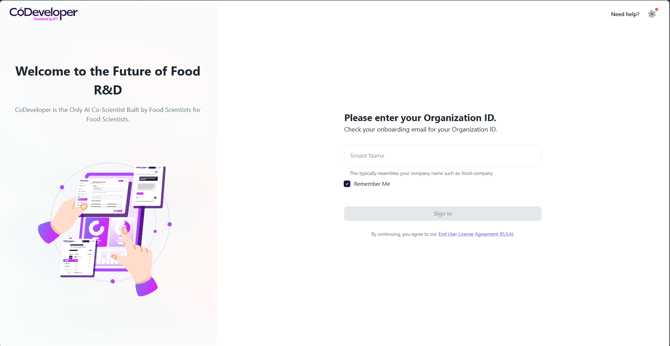
Using the link you received from the CoDeveloper team, navigate to the CoDeveloper app website. Depending on your link, you may land on the CoDeveloper homepage shown below, or you may be brought directly to the Organization ID screen in Step 2. If you land on the homepage, click Sign In in the top-right corner.

Step 2: Enter Your Organization ID
On the next screen, enter your Organization ID into the field labeled Tenant Name and click Sign In. Your Organization ID is typically your company name (for example, "acme-corp"). If you do not know your Organization ID, check your onboarding email or contact your CoDeveloper administrator.
You can check the Remember Me box so you do not have to re-enter your Organization ID on future logins.
Step 3: Enter Your Email and Password
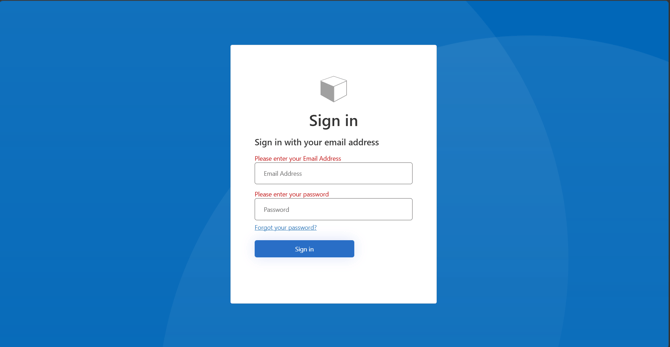
Enter your email address and password on the sign-in page, then click Sign In.
- If your account does not exist within the organization or does not have access, you will see a message that says"We can't seem to find your account." Contact your CoDeveloper administrator to verify your account has been provisioned.
- If you forgot your password, click the Forgot your password? link on this screen. For detailed instructions, see the link-to-forgot-password-article help article.
Step 4: Retrieve Your Verification Code
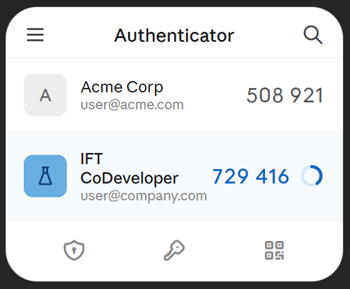
After entering your credentials, you will be prompted to complete multi-factor authentication (MFA). Open your authenticator app on your mobile device and locate the six-digit verification code for IFT CoDeveloper.
We recommend using Microsoft Authenticator, but other authenticator apps such as Google Authenticator and Authy are also supported. To download Microsoft Authenticator, visit the https://support.microsoft.com/en-us/account-billing/download-and-install-the-microsoft-authenticator-app-351498fc-850a-45da-b7b6-27e523b8702a.
If this is your first time logging in, you will be guided through the MFA setup process before reaching this step.
Step 5: Enter the Verification Code
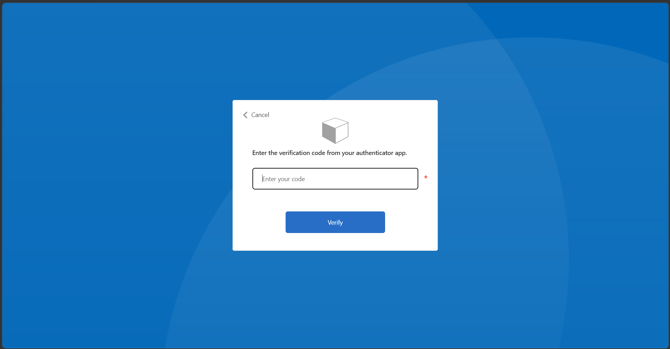
On the verification screen, enter the six-digit code from your authenticator app into the Enter your code field and click Verify. The code refreshes every 30 seconds, so be sure to enter it before it expires. If your code expires, simply use the new code that appears in your authenticator app.
Once verified, you will be signed in and brought to your CoDeveloper dashboard.
Troubleshooting
| Issue | Solution |
|---|---|
| "We can't seem to find your account" | Verify your Organization ID is correct and that your administrator has provisioned your account. |
| Forgot your password | Click Forgot your password? on the sign-in screen and follow prompts. |
| Verification code not working | Make sure you are using the code for IFT CoDeveloper (not another account) and that the code has not expired. |
| No authenticator app set up | Download https://support.microsoft.com/en-us/account-billing/download-and-install-the-microsoft-authenticator-app-351498fc-850a-45da-b7b6-27e523b8702a and follow the first-time MFA setup prompts during login. |
| Still need help? | Contact your CoDeveloper administrator or reach out to the CoDeveloper support team. |