
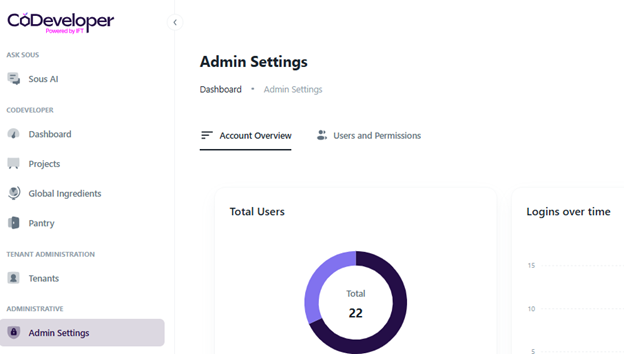
- In order to delete a user, start by clicking on “Admin Settings” from the left hand navigation.
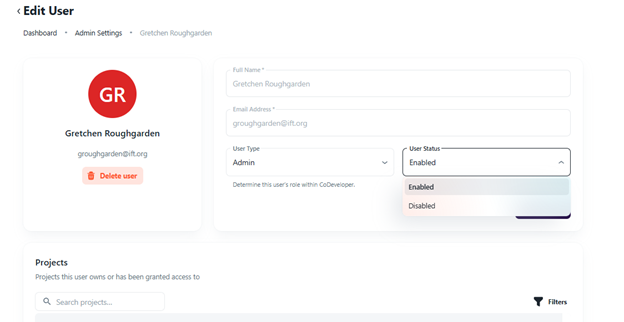
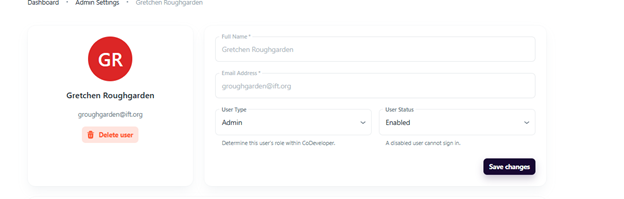
- Click the “Users and Permissions” tab to the right of “Account Overview”. From here click the name of the user that you would like to delete or disable. This will bring up their user page and you will see both the red Delete user button on the left as well as the user status drop down that says Enabled and Disabled.
- Review the user’s owned and shared projects.
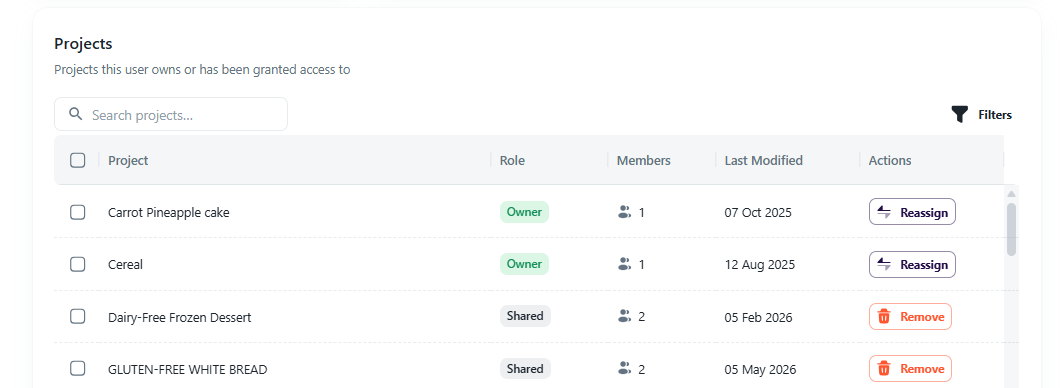
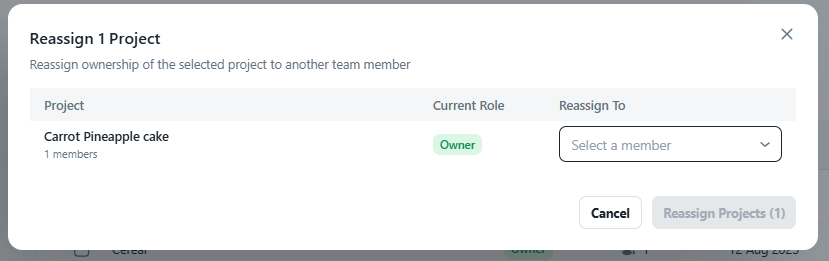
- Reassign owned projects as needed by clicking the "Reassign" button and selecting a name from the drop down menu.
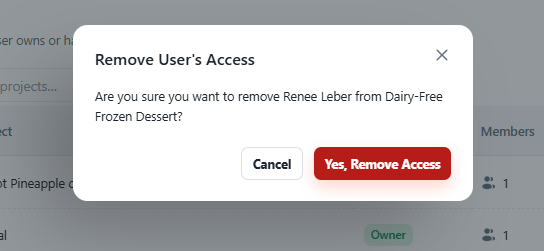
- Remove the user from shared projects as needed by hitting the Remove button then clicking the Yes, Remove Access in the pop-up.
- Once you choose either of Disable or Delete, make sure that you hit the Save Changes purple button underneath the user status drop down. Once the user is either deleted or disabled the seat will free up and a new user will be able to occupy it.
Troubleshooting and Common Questions
What is the difference between deleting and disabling a user?
Deleting a user will remove their name and data from the Admin Settings page where disabling a user will leave them and their data on the Admin Settings page but will end their access to CoDeveloper.
Would deleting or disabling a user free up a seat for a new user?
Yes, once a user is deleted or disabled a new user can be put in their place