
Summary
Upload images and files directly into a Sous conversation so Sous can analyze their contents and use that information when responding to your questions. This feature is helpful when working with documents, images, reports, screenshots, or other files that provide context for your request.
Steps
Upload a File or Image
1. Open a conversation with Sous from anywhere in the platform.
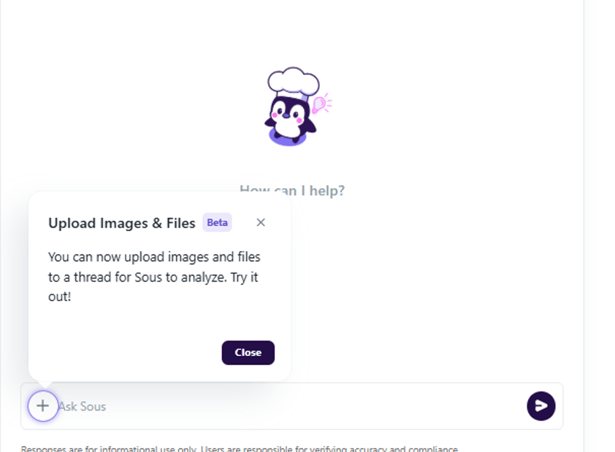
2. In the conversation window, select the + button.
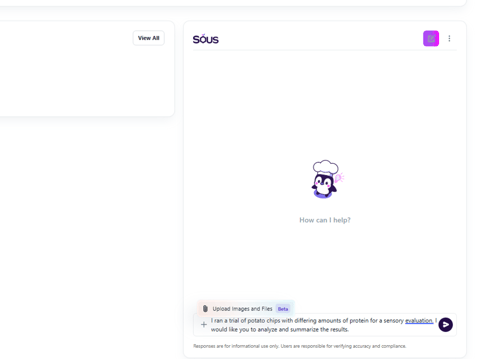
3. From the menu that appears, select Upload Images and Files.
4. Browse to the file or image you want to upload.
5. Select one or more files, then choose Open.
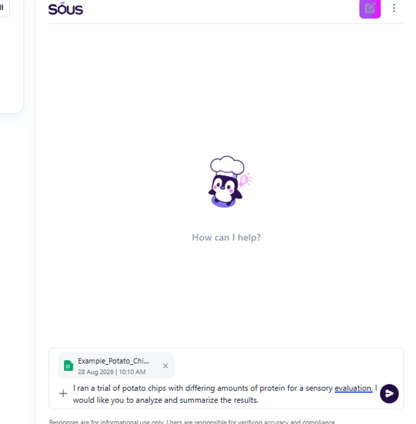
6. Confirm that the file appears in the conversation alongside your prompt.
Ask Sous to Analyze the File
1. Enter your question or request in the conversation.
2. Submit your prompt.
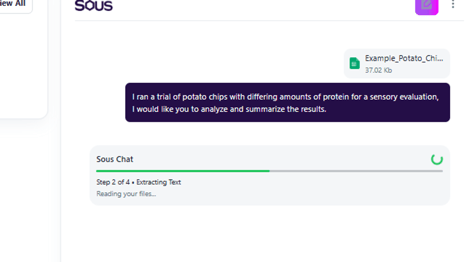
3. Wait while Sous processes the uploaded content.
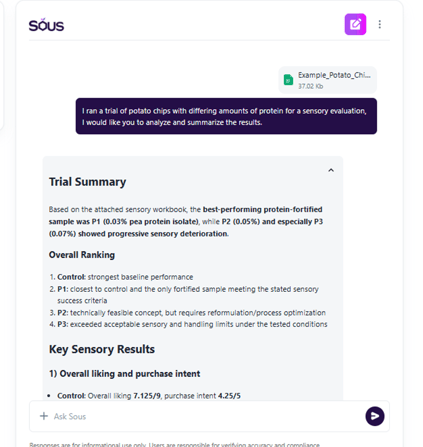
4. Review Sous's response, which will incorporate information from the uploaded file or image.
Video: Adding Custom Content in Chat
Troubleshooting and Common Questions
I don't see the Upload Images and Files option.
Verify that you are using Sous chat feature and not a separate feature in the platform.
My file uploaded, but Sous doesn't reference it.
Ensure your prompt clearly asks Sous to analyze or use the uploaded file. You can also try rephrasing your request to be more specific. If you are noticing inconsitencies in the response, please let us know at support.codeveloper@ift.org.
Can I upload more than one file?
Yes. You can select multiple files during the upload process if supported by your environment.
Why do I see Sous working through multiple steps?
Some requests require additional processing, such as extracting text from documents or analyzing images. These steps help Sous understand and use the uploaded content accurately.