To create a formula start by hitting the New Product button on the top right-hand side of the screen. You'll be taken to the Create a New Project page where you are able to input the information about the formula. Filling out as much information as possible will allow CoDeveloper to understand the product being developed and help create the formulation. At the bottom of the page there is a Create Project button which goes to the formulation page.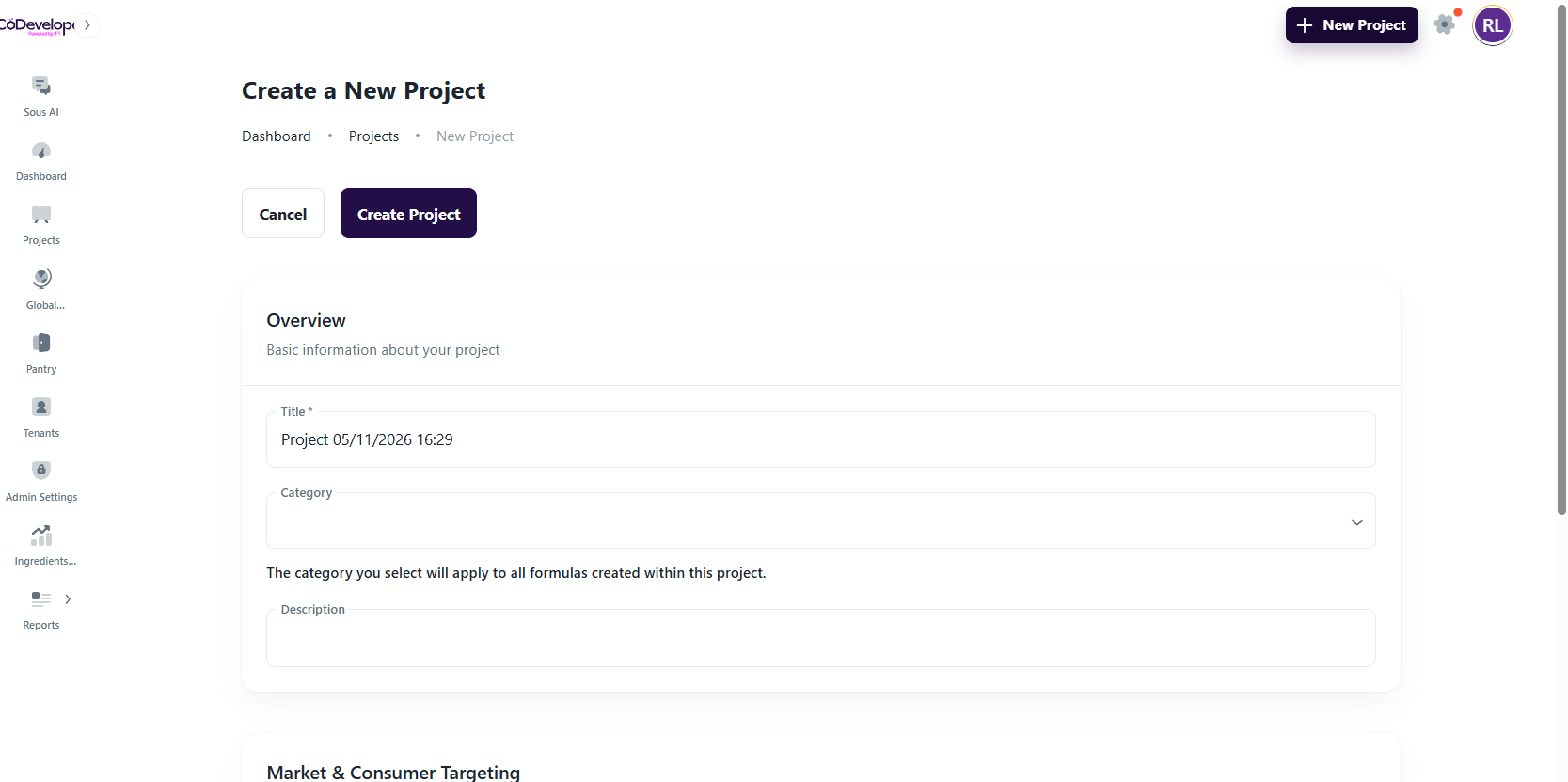
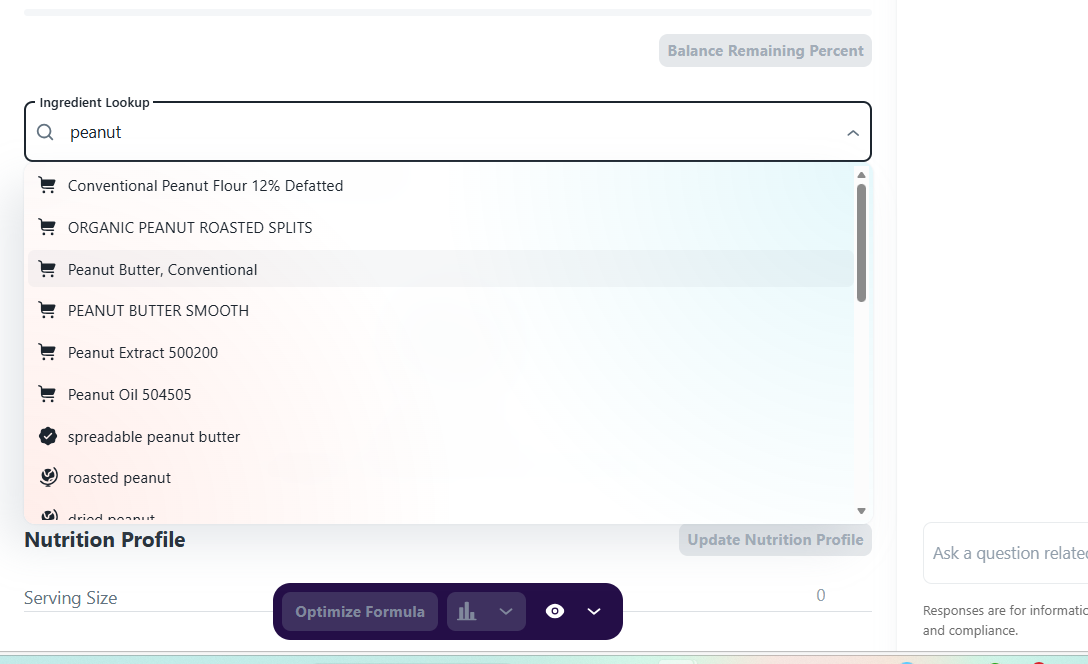
From here there are three ways to start a formula. the first way is to simply start typing ingredients into the ingredient lookup. if you click on an ingredient in the ingredient lookup it will start the ingredient list below.
 If you hit edit, which is the pencil icon on the right side of the ingredient table, you're able to adjust the percentage of each of the ingredients added. In this way you were able to start building a formula.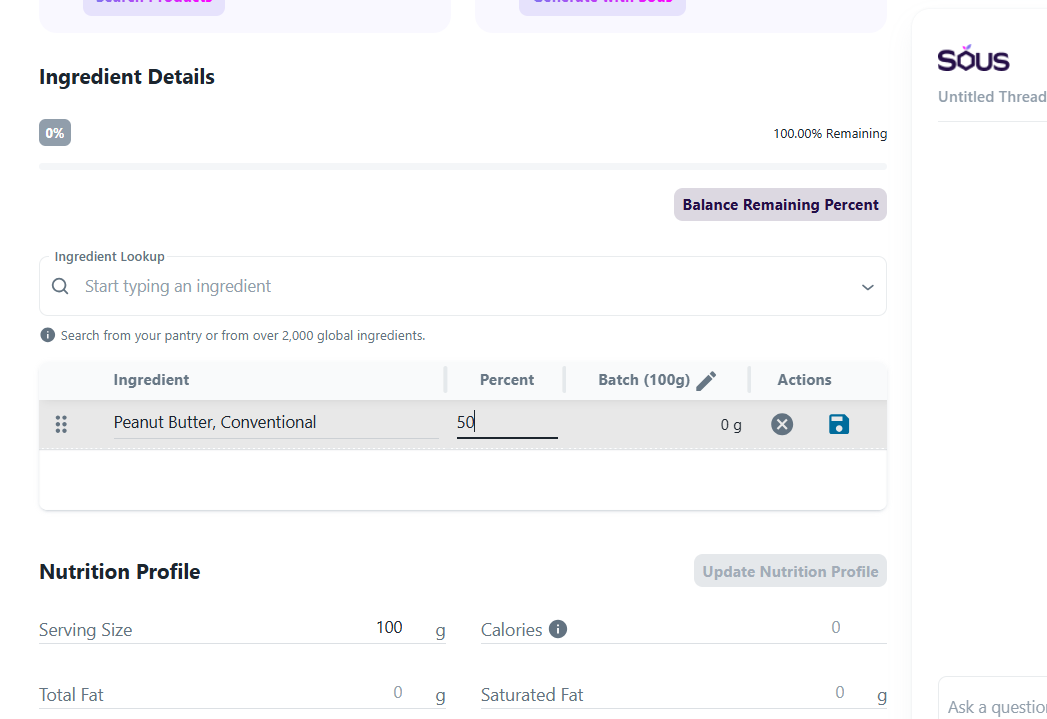
The second way to create a formula is to use reverse engineering. In order to do this click the Search Products button in the Reverse Engineer and Existing Product. You can now search a product by description, brand, category, or GTIN. When you have found the product that you are looking to reverse engineer click the Preview button on the right. This will bring up a list of ingredients and a nutrition facts profile. If this looks like what you are expecting then click the Select Product button in the bottom right hand corner. This will auto populate the ingredient table with the mathematic formulation for reverse engineering. You will notice Sous start working on an optimized formula. When Sous has finished the optimized formula there will be a button on the bottom of the latest Sous post that says view optimized formula. If you click that it will have the original reverse engineer and then the optimized reverse engineer side by side to compare. You may either keep the statistical formula or accept the optimized formula. 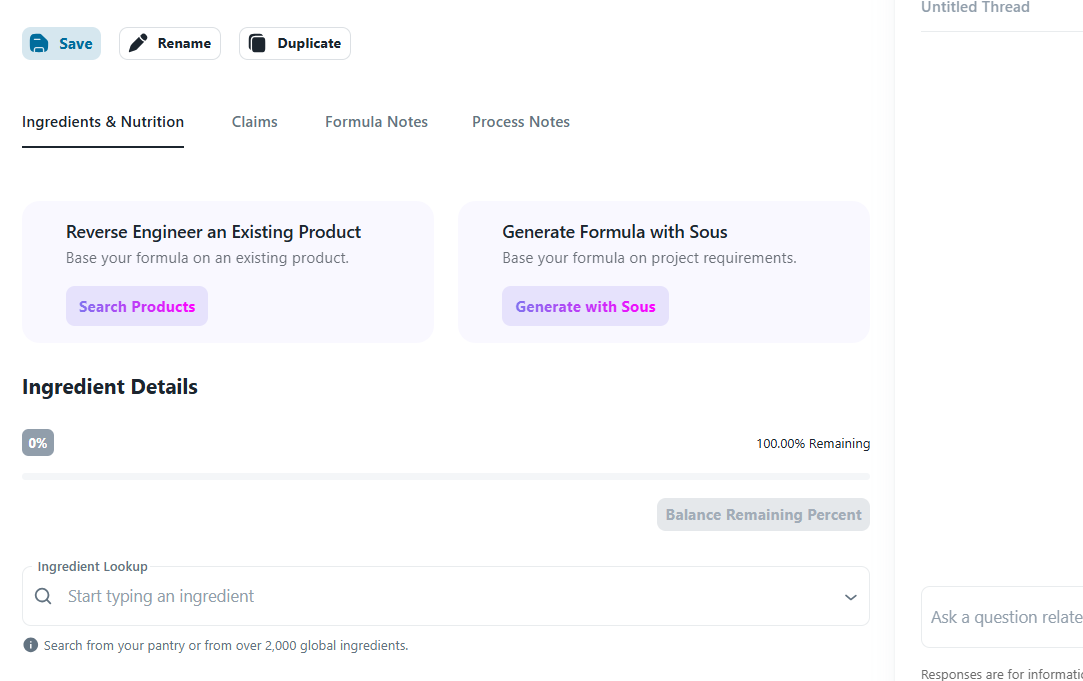
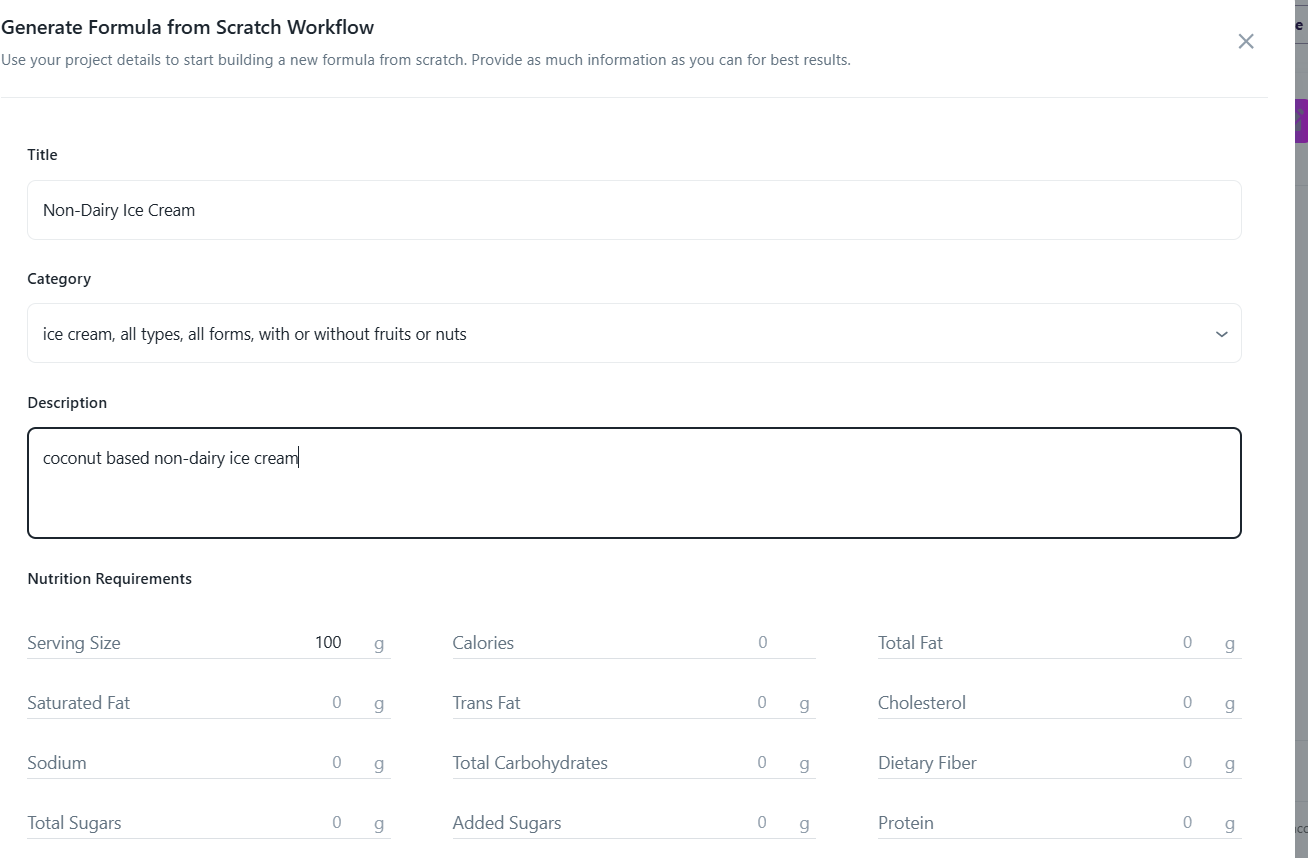
The last way to start a formula is to generate a formula with Sous. in order to do this click the generate a Generate with Sous button within the Generate Formula with Sous box. Fill in the product profile with the title, category and description and any nutrient requirements or target customers. After this click the Generate Formula with Sous button on the bottom. This will create a Sous response that details the product formulation and a view actions button. If you click this a drop down list of ingredients will appear that can be checked and a button underneith that says "Apply" to apply them to the formula. Check all the components you would like to apply to the formula before clicking apply.