
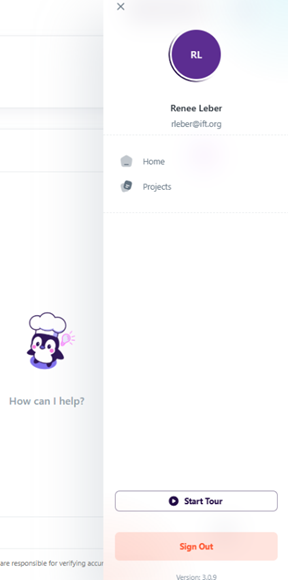
If at any point you want a refresher on formulating within CoDeveloper then you can click your initials on the top right hand side of the CoDeveloper page to take a CoDeveloper formulating tour. You will see that a panel opens on the right hand side. On the bottom there is an orange sign out button and directly above that there is a button that says “Start Tour”.
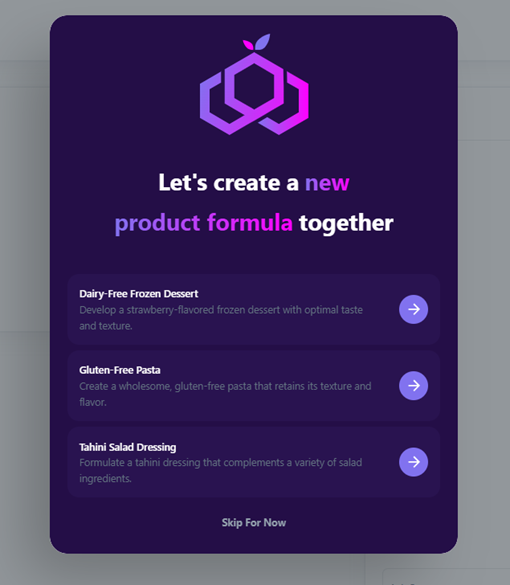
If you click on the “Start Tour” button a purple window will pop up that says “Let's create a new product formula together”. Underneath there are three potential products that can be created during this tour. To start the tour pick any of the three products which are a dairy free frozen dessert, a gluten free pasta or a tahini salad dressing. If you click “Skip For Now” you will leave the tour.
After One of these options is picked. You will be taken to the formulate page where you will be asked to choose between reverse engineering and existing product or generating the formula with Sous.
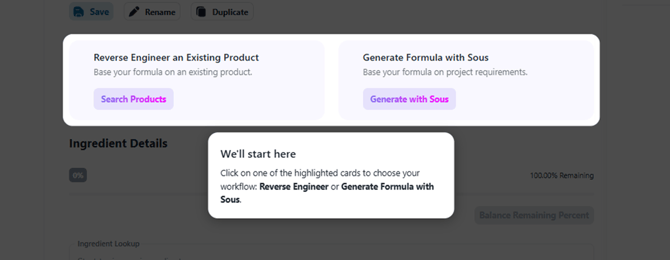
If you choose: Reverse Engineer an Existing Product
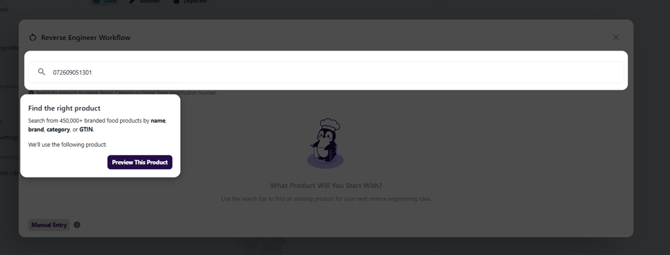
If you click reverse engineer an existing product the first thing that will come up is the reverse engineer GTIN search. which will be populated with a GTIN. From here you will have to click the “Preview This Product” button.
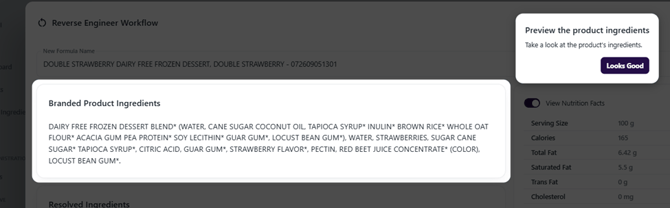
You will be alerted that the product details are being input. The first thing that will come up after that is the branded product ingredients with a second box asking you to preview the product ingredients and confirm that the ingredients listed look good. You will need to click the box “Looks Good”.
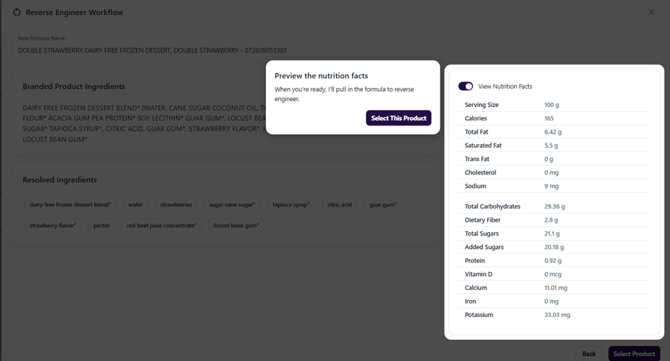
Next you will be asked to preview the nutrition facts and then select the button that says “Select This Product”.
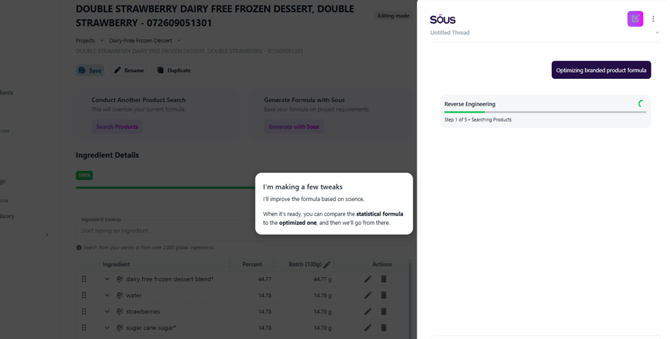
Then you'll be taken back to the formulate page where you will see that Sous is going through the steps of the reverse engineering. You can follow along with what step Sous is on in reverse engineering by watching the progress bar.
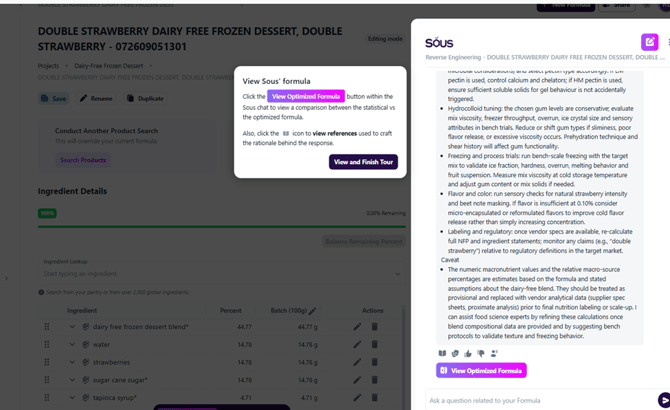
Once the reverse engineering workflow is complete you will notice that a text box comes up on the right hand side. This text box talks through the formulation that was reverse engineered. On the bottom there is a purple and pink button titled “View Optimized Formula” you can click this button or click the “View and Finish Tour” button.
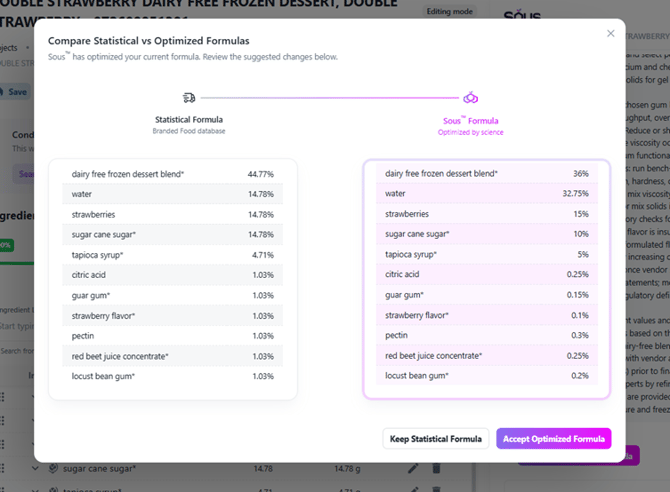
If you click the View Optimized Formula button a window will appear that compares the statistical formula with the Sous formula optimized by a science. You then have the options to keep the statistical formula or accept the optimized formula by clicking the buttons on the bottom. Clicking either will bring you to the end of the tour.
If you choose: Generate Formula with Sous
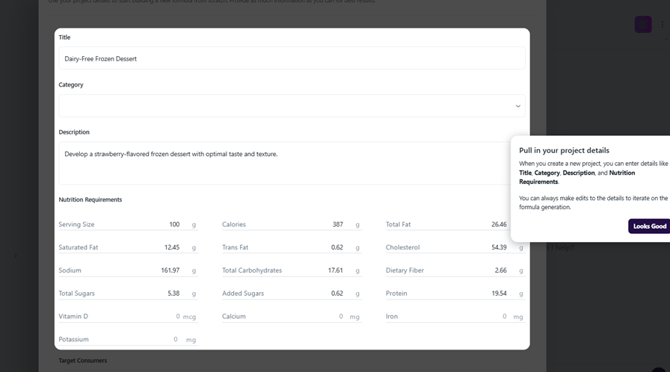
In order to generate a formula with Sous you will click the “Generate with Sous” button. This will cause a box to come up that will contain input fields for the title, category, description and nutrition requirements for the product. There will be a box to the right that says “Pull in your project details” with a button that says “Looks Good”. Clicking the “Looks Good” button will kick off the formulation generation.
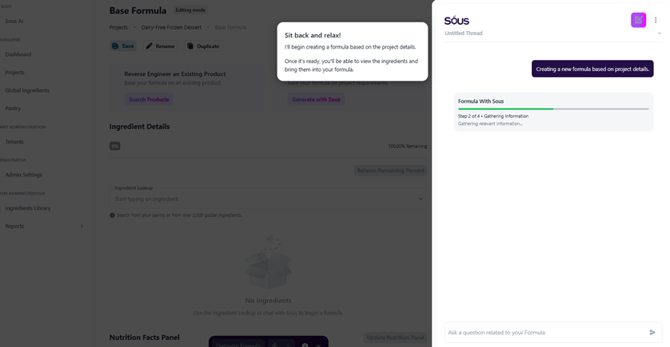
Sous will begin work on generating the formula. You can watch the progress Sous is making with the progress bar.
A Text will appear in the Sous Panel describing the formulation and logic behind it. Underneath will be a button that says “View Actions”.
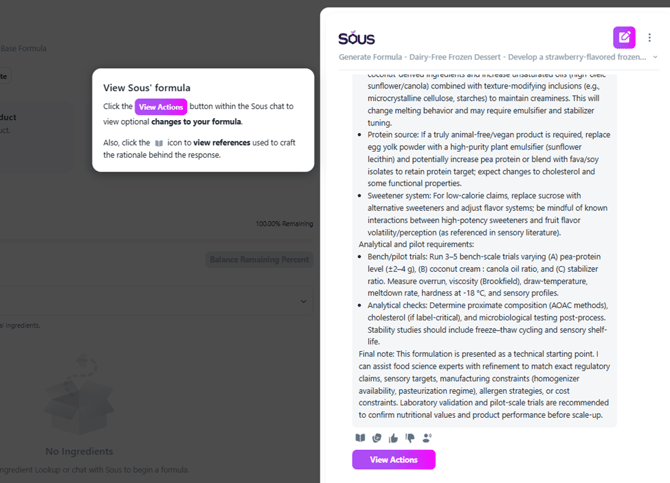
Clicking that “View Actions” button will pop up a list of ingredients that make up the formulation. You will be able to check ingredients to have them added to the formulation or toggle Select All. Next you will click the “Apply” button. This will move the ingredients in to the formulation page and end the tour.